Categories
Security Windows

Lock it down with WDAC

Windows Defender Application Control Overview

WDAC allows organizations to control which drivers and applications are allowed to run on their Windows clients. It was designed as a security feature. WDAC policies apply to the managed computer as a whole and affects all users of the device.

WDAC and AppLocker Overview – Windows security | Microsoft Docs

WDAC rules can be defined based on:

  • Attributes of the codesigning certificate(s) used to sign an app and its binaries
  • Attributes of the app’s binaries that come from the signed metadata for the files, such as Original Filename and version, or the hash of the file
  • The reputation of the app as determined by Microsoft’s Intelligent Security Graph
  • The identity of the process that initiated the installation of the app and its binaries (managed installer)
  • The path from which the app or file is launched (beginning with Windows 10 version 1903)
  • The process that launched the app or binary

Organizations that have successfully deployed application control have ensured the following before starting their planning. Once these business factors are in place, you are ready to begin planning your WDAC deployment. WDAC is a powerful tool that needs planning and support, but it is built in to Windows and requires no additional installs.

  • Executive sponsorship and organizational buy-in is in place.
  • There is a clear business objective for using application control, such as further Zero Trust adoption, and it is not being planned as a purely technical problem from IT.
  • The organization has a plan to handle potential helpdesk support requests for users who are blocked from running some apps.
  • The organization has considered where application control can be most useful (for example, securing sensitive workloads or business functions) and also where it may be difficult to achieve (for example, developer workstations).
Type of DeviceHow WDAC relates to this type of device
Lightly managed devices: Company-owned, but users are free to install software.
Devices are required to run organization’s antivirus solution and client management tools.
WDAC can be used to help protect the kernel, and to monitor (audit) for problem applications rather than limiting the applications that can be run.
Fully managed devices: Allowed software is restricted by IT department.
Users can request additional software, or install from a list of applications provided by IT department.
Examples: locked-down, company-owned desktops and laptops.
An initial baseline WDAC policy can be established and enforced. Whenever the IT department approves additional applications, it will update the WDAC policy and (for unsigned LOB applications) the catalog.
WDAC policies are supported by the HVCI service.
Fixed-workload devices: Perform same tasks every day.
Lists of approved applications rarely change.
Examples: kiosks, point-of-sale systems, call center computers.
WDAC can be deployed fully, and deployment and ongoing administration are relatively straightforward.
After WDAC deployment, only approved applications can run. This is because of protections offered by WDAC.

While WDAC policies can be created with PowerShell, the Windows Defender Application Control (WDAC) policy Wizard is an open-source Windows desktop application built to provide security architects with security, and system administrators with a more user-friendly means to create, edit, and merge WDAC policies.  The Wizard uses the ConfigCI PowerShell Cmdlets in the backend so the output policy of the Wizard and PowerShell cmdlets is identical.
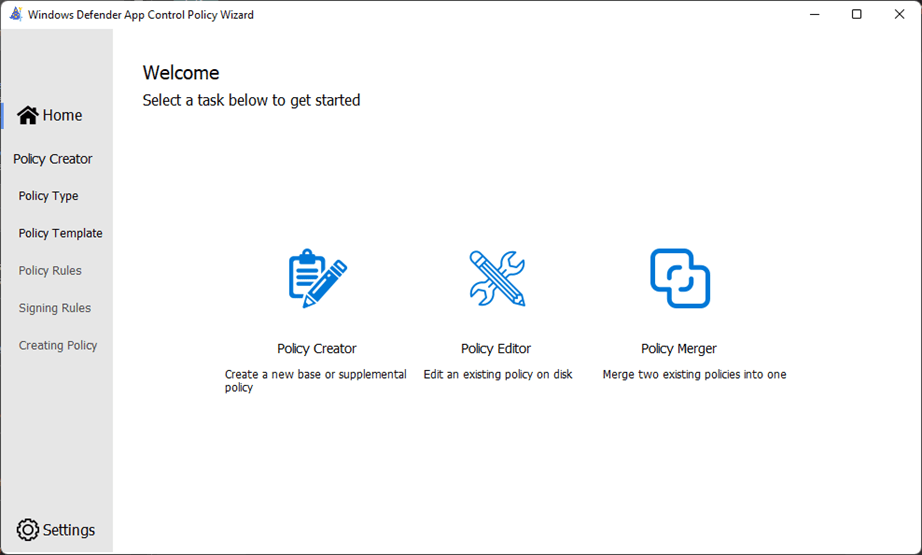
Windows Defender Application Control Wizard

The Policy Creator task provides base templates for policy creation. Each of the template policies has a unique set of policy allow list rules that will affect the circle-of-trust and security model of the policy.

For instance, the Default Windows mode policy trusts fewer application publishers and signers than the Signed and Reputable mode policy.

The Default Windows policy will have a smaller circle-of-trust with better security than the Signed and Reputable policy, but at the expense of compatibility.
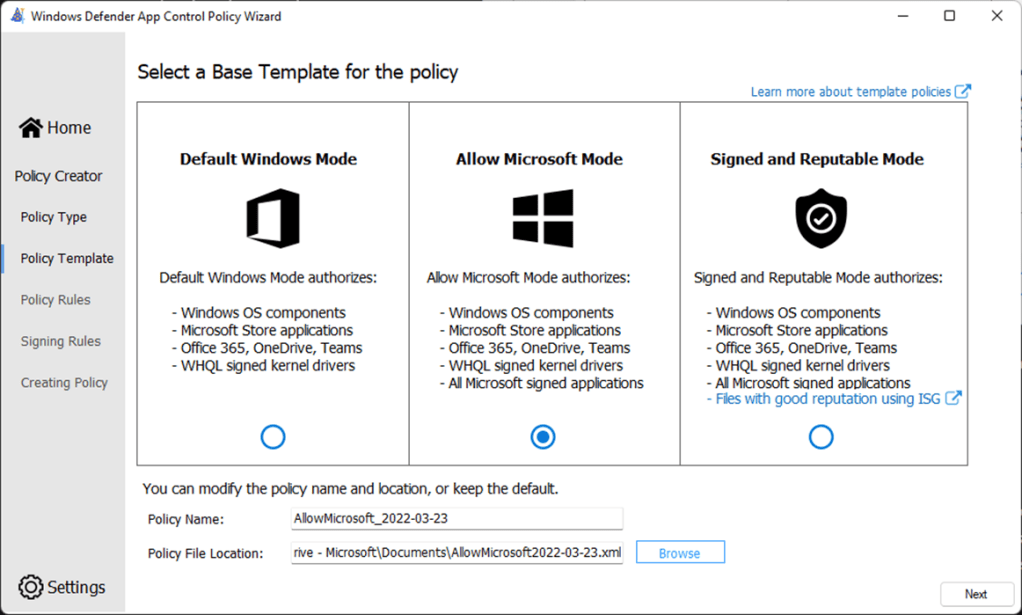
This example Allow Microsoft policy will allow apps from Microsoft, as well as apps that are know as trustworthy by an organization. All other apps are implicitly denied, including high reputation apps that appear on the Intelligent Security Graph. This policy is configured for enforcement, as Audit Mode is not enabled.

Policy Signing Rules can be added to a policy, to increase the circle-of-trust with Allow rules. In this example, rules have been added to Allow apps to run if signed by Mozilla Corporation and Yubico AB, plus app files in the Yubico program folder.

This is an example policy in enforcement mode that allows apps that are signed by trusted authorities, as well as apps that are know as trustworthy on the Intelligent Security Graph. In addition, known trustworthy signers or apps can be blocked with Deny rules.
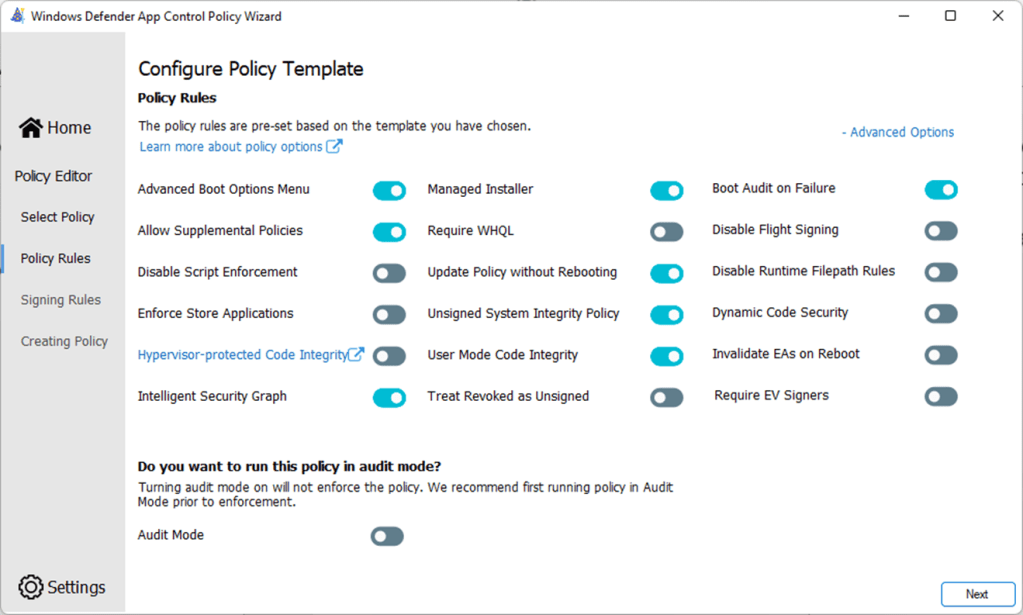
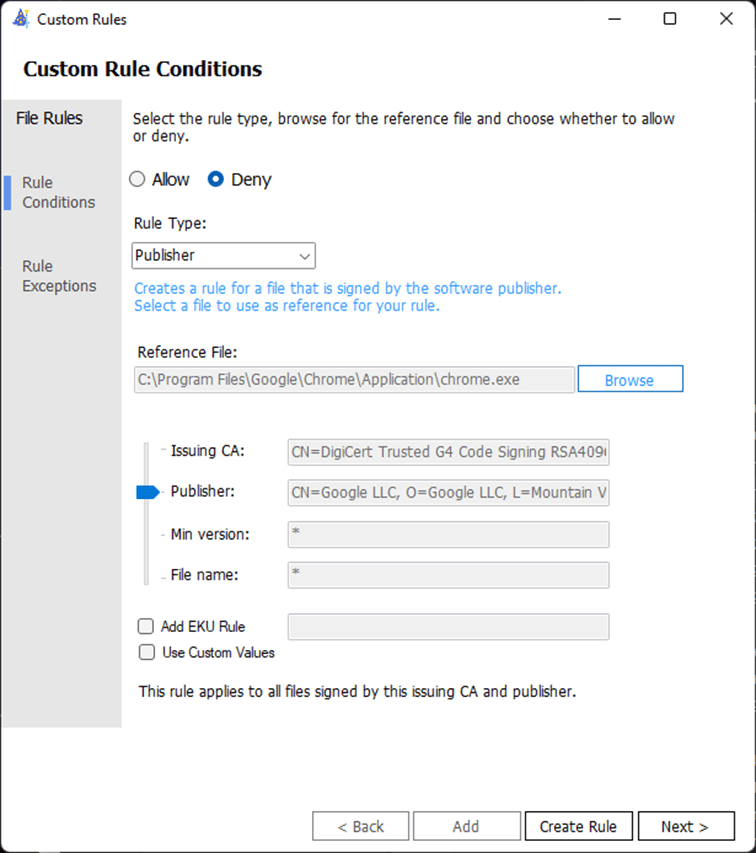
Add a Custom Rule to Deny files signed by Google LLC publisher. Pairing Intelligent Security Graph with Deny Rules allows teams to support users who run a variety of globally know and reputable applications, while blocking specific applications or applications with specific publisher signatures.
WDAC in action

Applications with known good reputation are allowed.  Applications signed by Google are denied.

Advanced Hunting in Microsoft Defender for Endpoint

A WDAC policy will log audit and block events locally in Windows Event Viewer. This audit entry shows that an audit mode policy is applied and that chrome.exe would not run under enforcement mode.


Event 8003 entries, showing Audit Mode policies are applied to the machine, and apps would be blocked if policy is enforced, even if the original executable is renamed by a privileged user.

Microsoft Defender for Endpoint is an enterprise endpoint security platform designed to help enterprise networks prevent, detect, investigate, and respond to advanced threats. Embedded in Windows 10 and 11, sensors collect and process behavioral signals from the operating system and send this sensor data to your private, isolated, cloud instance of Microsoft Defender for Endpoint.

https://learn.microsoft.com/en-us/microsoft-365/security/defender-endpoint/microsoft-defender-endpoint?view=o365-worldwide

Advanced hunting in Microsoft Defender for Endpoint allows admins to query WDAC events using an ActionType that starts with “AppControl”. Windows endpoints must be onboarded to Microsoft Defender for Endpoint.
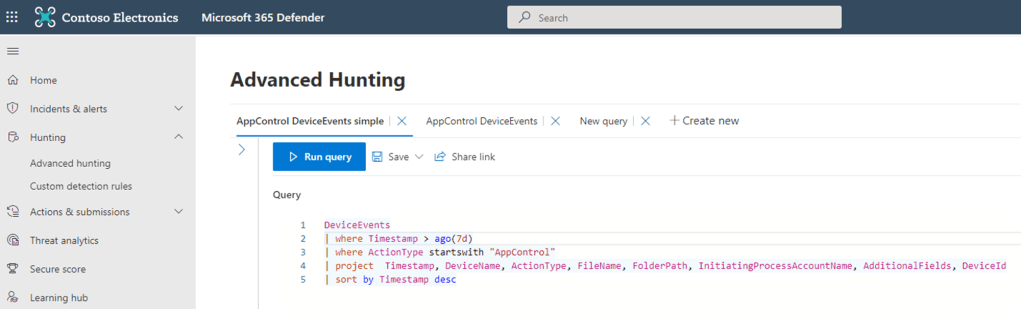
https://learn.microsoft.com/en-us/microsoft-365/security/defender/advanced-hunting-overview?view=o365-worldwide

https://learn.microsoft.com/en-us/windows/security/threat-protection/windows-defender-application-control/querying-application-control-events-centrally-using-advanced-hunting

Assess the impact of deploying policies using Audit mode to see how the rules would influence systems in real world usage. This event is for ActionType AppControlCodeIntegrityPolicyAudited triggered by auditing a chrome.exe process execution.

Policies deployed in enforced mode may block executables or scripts that fail to meet any of the included allow rules. Legitimate new applications and updates or potentially unwanted or malicious software could be blocked.

This event is for ActionType AppControlCodeIntegrityPolicyBlocked triggered by blocking a chrome.exe process execution by policy in enforce mode (AuditDisabled) with Deny rule for apps signed by Google LLC publisher.

Microsoft Defender for Cloud Apps

Microsoft Defender for Cloud Apps is a CASB (Cloud Access Security Broker) solution that can block shadow IT and cut off access to cloud services while preparing to deploy application control policies. It is complimentary technology with different use cases, but part of a defense in depth strategy.

https://learn.microsoft.com/en-us/defender-cloud-apps/what-is-defender-for-cloud-apps


WDAC and Smart App Control

Starting in Windows 11 version 22H2, Smart App Control provides application control for consumers. Smart App Control is based on WDAC, allowing enterprise customers to create a policy that offers the same security and compatibility with the ability to customize it to run line-of-business (LOB) apps. Smart App Control is only available on clean installation of Windows 11 version 22H2 or later, and starts in evaluation mode. Smart App Control will automatically turn off for enterprise managed devices unless the user has turned it on first.

https://learn.microsoft.com/en-us/windows/security/threat-protection/windows-defender-application-control/windows-defender-application-control#wdac-and-smart-app-control


Tools like WDAC

Categories
#sharingiscaring

March ’23 Week 3

Endpoint

Identity

Cloud

Teams

Green screen improves the sharpness and definition of the virtual background effect around your face, head, ears, and hair. It also allows you to show a prop or other object in your hand to be more visible to other participants in a call. https://m365admin.handsontek.net/microsoft-teams-green-screen-feature-in-teams-meetings/

Categories
#sharingiscaring

March ’23 Week 1

Cloud

Security

Endpoint

Identity

Teams

Categories
#sharingiscaring Azure Microsoft 365

What’s cool and new in February ’23

Categories
Azure

Azure Files Backup GA

On April 29, 2020 Microsoft announced that Azure Backup can now manage snapshots for Azure Files.

Azure Files Backup announcement

This is great news because it simplifies Azure Files protection with Recovery Services Vaults. Backups are important, so they should be easy to manage. Prior to this GA release, Azure Backup could only create 1 daily snapshot of Azure Files via backup policy settings.

Configure backup

Associate vault with file shares

However you manage Azure Files backup schedules, you need a Recovery Services Vault which must be present in the same region as the storage accounts hosting file shares. Vaults are configured for geo-redundant storage (GRS) by default, but can be changed to LRS to reduce costs.

Configure Backup for Azure FileShare, selecting your storage accounts and shares.

Automate backups with a runbook

To achieve weekly/monthly/yearly and other backup intervals, an Automation account and PowerShell runbook can automate Recovery Service Vault protection of Azure Files. This sample solution uses AzureRM PowerShell modules and is what I have been using with Runbooks prior to this GA announcement.

Open your Automation Account and create a PowerShell runbook under Process Automation.

Create a runbook

Copy the contents of the example runbook, paste into the editor and Publish.

Quick note: AzureRunAsCertificates need to be renewed yearly, so set a reminder in your service management tools to avoid backup interuptions.

Schedule a runbook

Multiple schedules will be needed for weekly/monthly/yearly/other recovery points. To fit your recovery point requirements, add schedules for 2nd daily/weekly/monthly/quaterly/end-of-fiscal-year to the Shared Resources Schedules of the Automation account.

Schedules

Link the schedules to the runbook for periodic runs. Now backup snapshots are created on the schedule you defined.

Linked schedules

Monitor logs

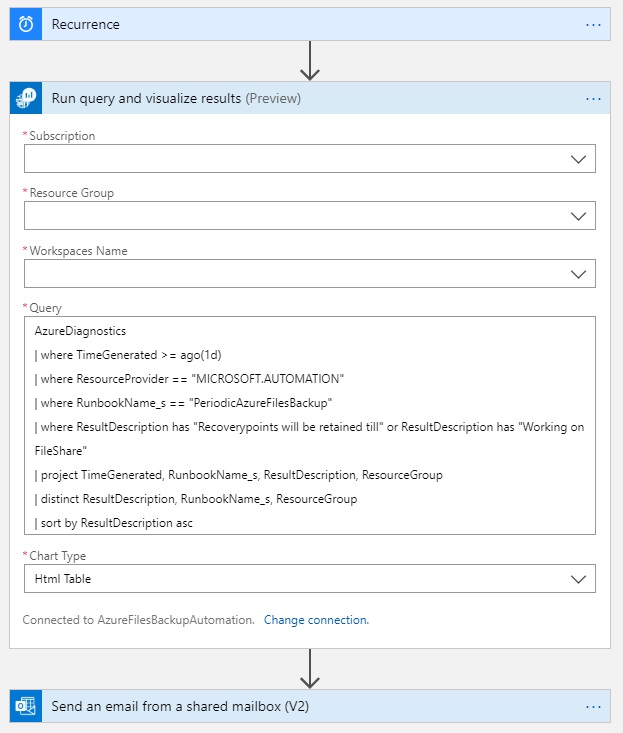
You can use Logic Apps, Log Analytics and Resource Group Monitoring Diagnostic settings to generate some simple backup notifications.

Resource Group Diagnostics

I use a daily and a weekly Logic App to generate reports.

AzureDiagnostics 
    | where TimeGenerated >= ago(1d) 
    | where ResourceProvider == "MICROSOFT.AUTOMATION" 
    | where RunbookName_s == "PeriodicAzureFilesBackup" 
    | where ResultDescription has "Recoverypoints will be retained till" or ResultDescription has "Working on FileShare" 
    | project TimeGenerated, RunbookName_s, ResultDescription, ResourceGroup
    | distinct ResultDescription, RunbookName_s, ResourceGroup
    | sort by ResultDescription asc 

Two weekly queries generate more verbose output.

AzureDiagnostics 
    | where TimeGenerated >= ago(7d) 
    | where ResourceProvider == "MICROSOFT.AUTOMATION" 
    | where RunbookName_s == "PeriodicAzureFilesBackup" 
    | where ResultDescription has "Recoverypoints will be retained till"
    | project TimeGenerated, RunbookName_s, ResultDescription, ResourceGroup 
    | sort by TimeGenerated desc
  
AzureDiagnostics
    | where TimeGenerated >= ago(7d)
    | where ResourceProvider == "MICROSOFT.AUTOMATION"
    | where RunbookName_s == "PeriodicAzureFilesBackup"
    | where ResultDescription has "Working on FileShare"
    | distinct ResultDescription
    | sort by ResultDescription asc

Azure Files Share Snapshot Management GA

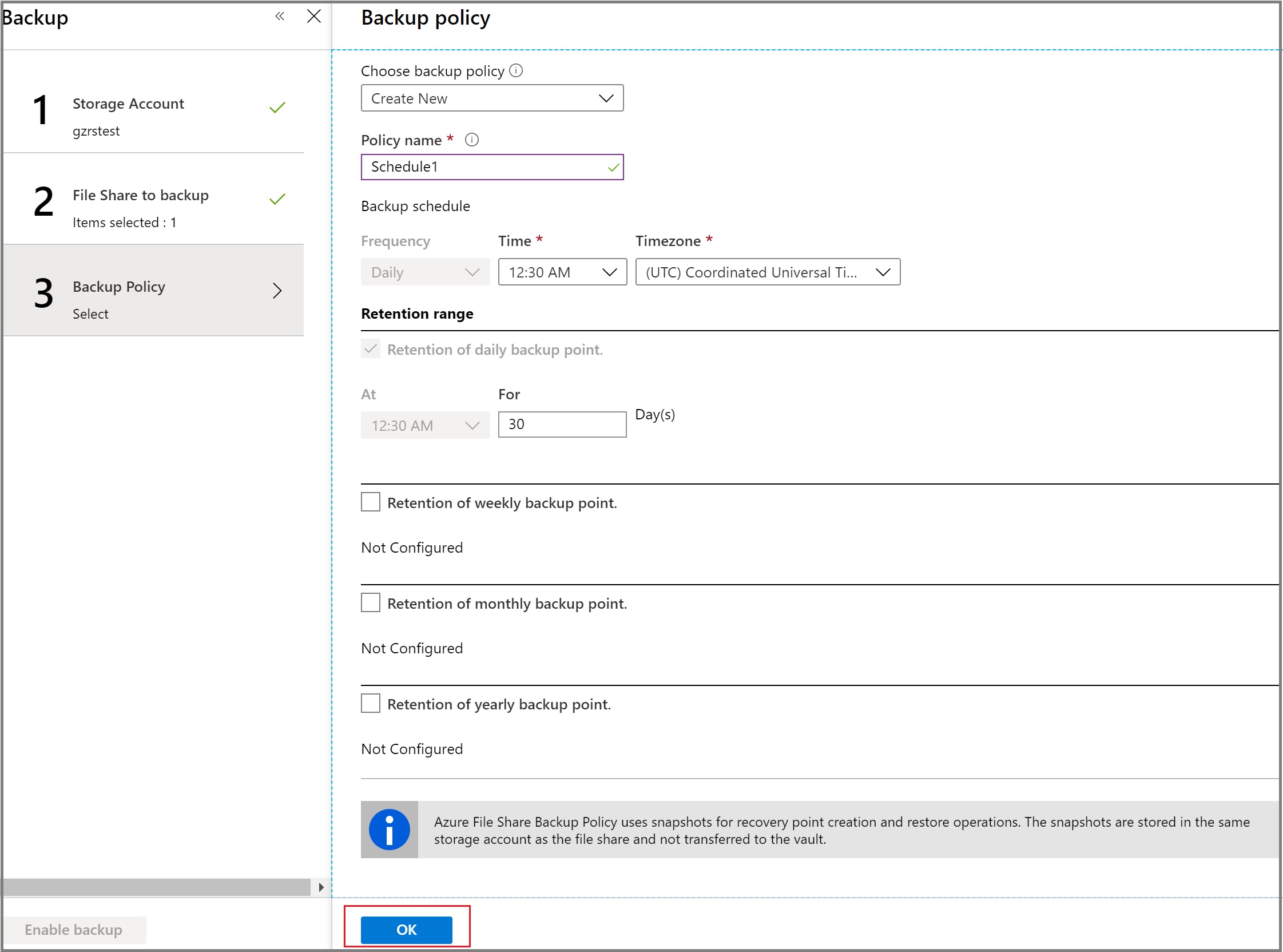
Azure Automation and Runbooks give you total control of the process and flexibility with managing schedules. That said, Azure Backup policy including additional common retention ranges is very user friendly, enabling admins and managers to confidently protect their files.

Azure Backup Policy 2020-04-29
Categories
Azure Visual Studio Code

Visual Studio Online and a Yearly Blog Post

This post refers to a previous version of my site that used GatsbyJS, prior to January 2021.

I purchased my domain last year to host a blog and email.  I did not expect to start producing a lot of posts so I wanted the blog itself to be as inexpensive as possible.  Here we are about 10 months later.


I started looking at static HTML generators like MKDocs, GitBook and Jekyl after finding a few sites that used them.They look like novel, modern and new ways to generate sites, and far beyond my mediocre HTML skills.  I wanted to deploy the site using Azure to gain experience with some DevOps workflows.


I built a blog with GatsbyJS based on a tutorial by Elena Neroslavskaya that was very helpful.

The workflow is:

  • Install node.js and generate a Gatsby site
  • customize and commit to a Git repository
  • use Azure pipelines to monitor the desired branch, build site files and deploy to an Azure Storage Account
  • use Azure CDN to quickly and cheaply serve the site globally


And it all worked great.  Managing SSL certs through Azure CDN was a challenge that took a lot of time to resolve, but I expect it will be reliable.  The site has been cheap to run.  What bothered me was managing my development environment, meaning Node.js and the project files from my Github.  If I wanted to develop at home on a workstation and then edit while at work using a more portable laptop, both systems had to have matching configurations and I needed to be good about managing my repo commits.  Since this was a group of new tools and techniques for me, I struggled.

I attended a Visual Studio Online session at Ignite 2019.

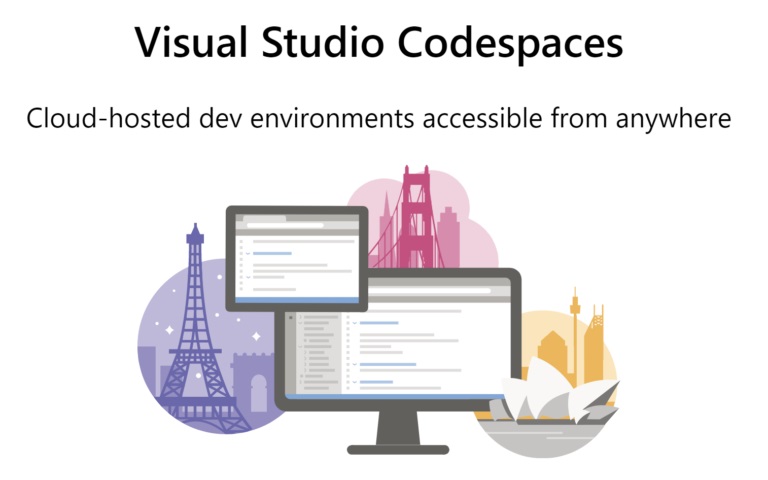
This is an Azure-hosted development environment that can be accessed via browser or Visual Studio Code.  The selling point for me was the isolated development environment usecase.  Instead of trying to maintain updates and avoid conflicts in a local environment, I build a new development environment when I need it, point it at my GitHub repo and configure it via script to install the tools I use.  In my case:

Updated 5/2/2020, Visual Studio Codespaces is the new name.

#!/bin/bash
# postcreate.sh

sudo apt-get update
npm install -g gatsby-cli
npm install

Now I can work on my Gatsby website anywhere, even access forwarded ports from localhost, and if the remote environment stops working, I can blow it away and start over.  A small thing, but very satisfying for me.

Categories
Azure

Azure File Sync and the bottomless server

One of the last workloads to migrate for my current environment is a 3-node Windows Failover Cluster with File Server for general use roles. The 3 nodes are Windows Server 2012 R2 guests on an HPE ProLiant blade Hyper-V cluster connected to an HPE StoreServ 3PAR 7200 via iSCSI.

I needed a solution that would:

  • Provide high availability and fault tolerance
  • Support a minimum of two sites
  • Integrate with Veeam and HPE StoreOnce with Catalyst deduplication
  • Provide a path to cloud infrastructure and services

I’d been testing different solutions for about a year between balancing daily requests and team projects.

DFSR could work but can have sync issues and seeding takes some effort. And there must be something else out there. It would work with Veeam VM backups. Path to cloud was questionable.

Maybe Storage Replica. It provides high speed data replication and high availability if using a stretch cluster. Running a guest cluster in our Nutanix environment with shared storage has been problematic at best and frustrating. Veeam Agents can protect a failover cluster, but not Veeam VM backups. That means backups to a Veeam Backup Repository or SMB share and then backup copy jobs to StoreOnce. The Nutanix storage fabric capacity was sized for running workloads, so subscribing it for backup storage was not feasible and purchasing compute and storage from a campus vendor would be a yearly expense with limited RoI. HPE StoreOnce supports CIFS shares for SMB but performance testing displayed slow transfer rates for backup and backup copy. Too many integrations, too many opportunities for something to go wrong, and Storage Replica is overkill for user home directories and group folders. Path to cloud also not great.

It was a lot of time spent experimenting and waiting for Azure File Sync to go from Preview at Ignite 2017 to GA in July 2018. This looked like the good stuff. A file sync service that works with on-premises Windows file shares, moves the storage hub to Azure, uses Cloud Tiering to keep the on-prem VM disk footprint small. Bottomless file server? Yeepp…

I came home from Orlando with a mission:

>Deploy AFS in dev and learn how to monitor it.
>Estimate costs for LRS or GRS storage accounts for about 10 TB of files.
>Get it all backed up.
>Ship it.

And that was September and October, where I had a lofty goal of cutting over our file shares during fall break or winter recess. There were still governance and technical configuration issues to address. I did not see how Azure backups would meet our retention needs as it appeared to only support daily jobs and 60 days retention. That is unless you contact the Azure Backup Team and ask for their sample runbook to automate on-demand backups.

I needed a solution for storing a full copy of our data on-prem for governance and local backup. Support for deduplication and cloud tiering came later with the February 2019 v5 Agent release. Prior to that I was concerned with the capacity needed on our two Nutanix Hyper-V clusters. I could have a full copy of a server endpoint on one cluster, a tiered endpoint on another cluster. More complexity.

This is a compromise but at least for proof of concept with some production lifetime, I like it. I combined 2.5" 5 TB Seagate BarraCuda spinning disk with HPE mixed use enterprise SSD in a ProLiant DL380 G9 to create a Windows Storage Pool with Tiered Storage. The performance is fair considering the cheap consumer HDD. The Virtual Disk and its volume hold the VHDX files for a VM whose sole purpose is to sync Azure Files. This is not a user facing server and there are no shared folders. The Windows Server 2016 host and Veeam 9.5u3 VM backups means Resilient Change Tracking makes quick work of protecting data.

More work to come with data migration, analytics, go live and troubleshooting.